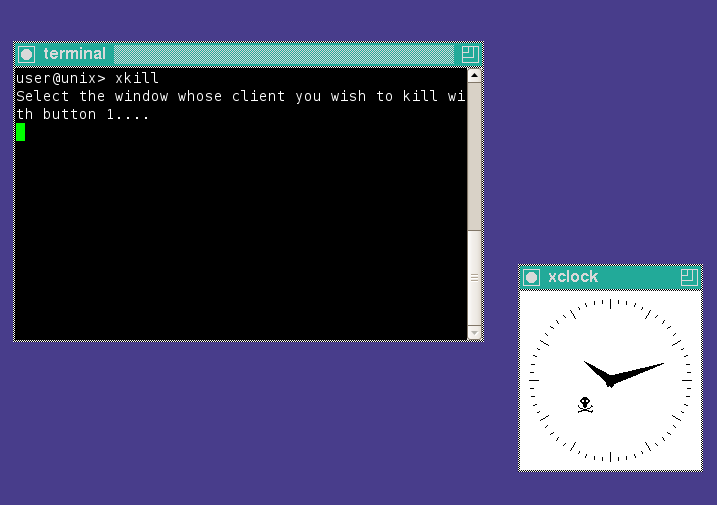
Anyone remember the "kill" desktop application?

garyn

Member
Joined
Jan 12, 2026
Messages
94
Reaction score
82
Credits
886
I'm going waayyy back to the early desktops and I "think" it was called "kill" and picking it and touching the application that would not close with the (skull or devil?) icon would pull the plug on it straightaway.

Sometimes Timeshift will not close and the "kill" application would do it. There's probably some good reason it's not included in distros anymore but it would seem easier than re-booting, no?


Puppy Linux still has this feature. Any application which is not responsive can be killed with one mouse click.

It's hardly ever used but the option is there. It's great.
 
if i’m not mistaken I remember using something similar when I was still on windows too, really useful especially on a potato laptop.
 
Make a file on your desktop. Let's call it shutdown.desktop.

Edit that file with your text editor. Include this:


Code:


[Desktop Entry]<br>Version=1.0<br>Name=Immediate Shutdown<br>Comment=Shut down the system immediately<br>Exec=systemctl poweroff<br>Icon=system-shutdown<br>Terminal=false<br>Type=Application<br>Categories=System;Utility;


Save the file.
Note that I've changed the command to systemctl poweroff. This was done to make it more immediate, without needing you to enter your password. As far as I know, most distros (that use systemd) will allow you to do this.
-------------
Thanks @KGIII
 
For just Timeshift

Timeshift will not close and the "kill" application would do it.

use

Code:
sudo killall timeshift-gtk

... but if you click to close Timeshift and it says that Timeshift doesn't want to close, you can choose Force Quit, or else Wait Longer will usually do it within a few seconds.

HTH

Wizard

Nite all
 
As stated above, you can use xkill to do exactly that.

If you're using an OS/DE that supports it, press Alt + F2, type in 'xkill', press enter, and then click on the offending application.


Follow Linux.org

Staff online

Members online


Top