Question about System Monitor

David Cat

Member
Joined
Apr 5, 2025
Messages
38
Reaction score
39
Credits
350
Can someone help a fairly ignorant, though keen Linux Cinnamon user please?

I have apparently got a problem with my system monitor, and not sure how to deal with it, or if I need to deal with it.

1756215380175.png

1756215396928.png


Above are two screenshots of the system monitor. As you can see from the file systems two of them are showing 92% and 99% full.
I don't understand what these two represent, except that they both appear to be full or fully utilised.

My question is this. Do I need to do anything to reduce those numbers, or is this normal?

Many thanks in advance to whoever comes to my aid.


That's not normal, no... That's a lot of data. You might consider moving some to other drives or removing files (completely removing, meaning not putting them in the trash) entirely. File systems like to have some free space as overhead, which is another thing to consider.
 
Definitely not 'normal'

Do you have an instinct that the two drives are that full ? ...or is this a shock to you?

if they are in fact THAT full.....you either need to follow @KGIII's advice above or get hold of another large drive to transfer some of that data to...in order to give them 'breathing room "
 
Can someone help a fairly ignorant, though keen Linux Cinnamon user please?

I have apparently got a problem with my system monitor, and not sure how to deal with it, or if I need to deal with it.

View attachment 27504
View attachment 27505

Above are two screenshots of the system monitor. As you can see from the file systems two of them are showing 92% and 99% full.
I don't understand what these two represent, except that they both appear to be full or fully utilised.

My question is this. Do I need to do anything to reduce those numbers, or is this normal?

Many thanks in advance to whoever comes to my aid.

Something is off here, when comparing some numbers to the blue bars. Looks to me like a bug in the system monitor display.
 
Something is off here, when comparing some numbers to the blue bars. Looks to me like a bug in the system monitor display.

I'm not spotting anything wrong with the math.

Of the two full drives, they're using more than 90% of the space. The free space is listed in the middle, under the 'available' column. That's just 1.3 GB and 76.2 GB. Unless I'm missing something, ~1% of one drive and 92% of the other drive, of the available total space.

What am I missing?
 
I'm not spotting anything wrong with the math.

Of the two full drives, they're using more than 90% of the space. The free space is listed in the middle, under the 'available' column. That's just 1.3 GB and 76.2 GB. Unless I'm missing something, ~1% of one drive and 92% of the other drive, of the available total space.

What am I missing?
Given your math credentials, I must have looked at one wrong. :)
 
Given your math credentials, I must have looked at one wrong. :)

Oh, good. I wasn't missing something obvious. I wasn't worried about my math, I was worried that I was missing something and that that something would be painfully obvious. I've got the math figured out. Heck, I can even do that math in my head, albeit not as quick as I once could. (Just find a single percentage and do the math from there, even if just to do a rough estimate as a sanity check.)

Yep, I sure did.

Should have turned this phone 90°. Oops.

That's what I figured.

The available column is the important factor in this one. If you just look at it quickly, or you're unfamiliar with that system monitor setup, it can be confusing.

I could see why you'd think something was amiss. I'm familiar with that system monitor. I'm pretty sure it's Linux Mint, Cinnamon edition. I could be wrong about that, but it's the same system monitor from what I see. But, a quick look at the totals and the available column show that this is a very full system.

As they don't seem to know why it's full, I'd guess it's some sort of automated process that's filling it up with data. Perhaps they have a backup that's set to store data on the in-use storage? Otherwise, maybe they have downloaded a bunch of games? They're using a whole lot of storage space for an OS drive, something I'd suggest they do the opposite with.

Maybe they just got fiber and they're trying to download the internet?!? That's what I plan on doing! (I kid... I kid...)
 
Also, OP...

You have enough free space to follow this article:


You can use those tools to visualize your disk space usage. That will help you spot large files, potentially for deletion. There are a variety of choices for doing so, but the article should get you started.

If you know what data is on the drives, you can decide what to do with it.
 
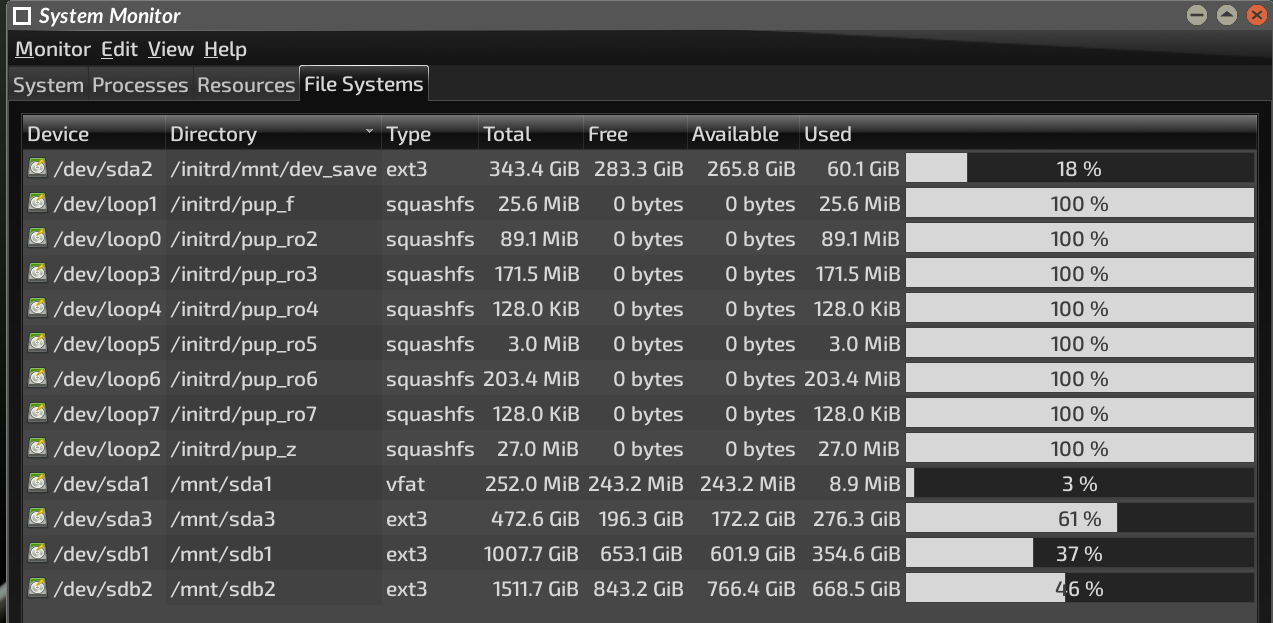
By way of contrast - and I admit, this IS going off at something of a "tangent".....though it's still kinda related - taking a quick look at the "FileSystems" tab of MATE System Monitor in Puppy shows this:-

Screenshot-528.png


To anyone unfamiliar with Puppy, a scan across all those 100% 'full' bars' would be getting plenty of people rather concerned, yes? But no! because these are perfectly normal for our Pup...

Those 100% 'full' bars are, in Puppy's case, merely registering the fact that all the individual 'loop layers' of the aufs layering filesystem are working exactly as they should. And if you look closer, you'll note that each and every one of those bars is showing itself as 'type - squashfs', rather than a normal, recognised file-system format. Look at how small each of those "file-systems" are, too...

The very top line represents the "kennels". This - at present - contains over a dozen, separate 'frugal' Puppy installs.....all running from the same partition. And it still ain't even 20% full yet..!

As stated above, sorry for the "red herring".....but it just goes to show, although you may THINK you know everything there is to know about Linux distros, there's still surprises a-plenty where you least expect them.

And now.......back "on-topic", and over to the rest of you guys.


Mike. :P
 
Last edited:
It's telling you that two Drives are full and you need to remove a lot of files etc to reduce Disk space otherwise you're going to have problems...you should always have at least 20% of free Disk space at all times especially with SSDs.

I only have one SSD in my Tower running Mint Cinnamon 22.1 but as you can see there's plenty of Disk space because everything is stored on External Drives.
1756258698132.png


1756258731847.gif
 
Last edited:
@David Cat - if you are using Linux Mint (are you), it could be a Timeshift issue, with wrong settings applied.

Go to your Menu and open Timeshift and see if you can tell anything from that.

Cheers

Chris Turner
wizardfromoz
 
I cannot get my head around what is happening. Sorry. I'm a bit thick.

This is the latest screenshot from the system just now. As you can see one of the files has reduced from 92% whilst the other is showing 99-100%
I've tried closing down various processes but nothing seems to affect the figures.

I had a look at Timeshift and cannot see anything wrong with that.
 

Attachments

  • Screenshot from 2025-08-27 13-32-27.png
    Screenshot from 2025-08-27 13-32-27.png
    45.8 KB · Views: 194
I cannot get my head around what is happening. Sorry. I'm a bit thick.

This is the latest screenshot from the system just now. As you can see one of the files has reduced from 92% whilst the other is showing 99-100%

The numbers and bars here mean what is stored on your drives. NOT in memory. It's common for folks to confuse those.


Or are you possibly confusing MB, GB, and TB?

A MB (megabyte) is a million bytes.
A GB (gigabyte) is 1000 MB.
A TB (terabyte) is 1000 GB.

Again, stored on your drives. That doesn't go away when you power down your computer

I've tried closing down various processes but nothing seems to affect the figures.

The running processes have little (if anything) to do what is occupying space on your drives; only in your computer's RAM (memory), which is erased when you power down your computer.

Does this help? Maybe someone else can clarify.
 
I cannot get my head around what is happening. Sorry. I'm a bit thick.

This is the latest screenshot from the system just now. As you can see one of the files has reduced from 92% whilst the other is showing 99-100%
I've tried closing down various processes but nothing seems to affect the figures.

I had a look at Timeshift and cannot see anything wrong with that.

Forget processes...the problem is your 250GB Drive has less than a 1 GB of Disk space left. You need to remove things off that Drive and whatever you...do not touch the Boot/EFI partition.
1756346494752.gif


Your two media Drives have plenty of free space...you could remove things from the 250GB Drive on them or to an External Drive.
1756346928919.gif
 
Last edited:
Sorry Bob.

Due to lack of understanding (mainly cos I'm thick) I have inadvertently sorted out part of the problem (I think). However As you can see from the screenshot below the data area is showing now that there is 72 gb space left. Yet the system monitor tells me the Data are is 1TB.

I have tried moving files from the data area ( some are out of date, yet I am told I don't have permission.

I am thinking seriously of reinstalling Mint from a USB but when I put the stick in it is not being recognized.

I might resort to burning this machine and use my wife's laptop with (dare I say it) Windows..
 

Attachments

  • Screenshot from 2025-08-28 13-35-30.png
    Screenshot from 2025-08-28 13-35-30.png
    37.3 KB · Views: 193
I found something this afternoon which might be causing the problem.

Seems that when I create anything, file, video etc then it automatically saves it to the media/David/data directory. It could be that this has become full due to me making a video the other day and saving it. Only today did I discover this and move the 'save to' directory onto the external hard drive. But I still cannot remove stuff on the media/david/data file.
 
You realize that /media/david/ is not your internal SSD, right? Looks like a removable storage media plugged into a USB port (USB stick or thumb drive).


Follow Linux.org

Members online


Top