Hello, I'm Lucas, and I've created a new Linux distro. The project is Open Source as any Linux distribution. Please do not sell it to anyone as if it is yours. You are totally free to create distributions based on Abéllha OS. And you can create a ISO file(the system haven't a ISO file, and if u want easy acess create it). If you do, please send it to us on our e-mail, [email protected] or on our Github "mailbox" .And we will aprove if its a good one or not, and we can't post it, but your free to post your Abéllha OS ISO. If you leave us free to publish your ISO(if u create) we'll be grateful. Yeah, that's it! Site: https://github.com/coresystems-engineering/Abellha-OS

You are using an out of date browser. It may not display this or other websites correctly.
You should upgrade or use an alternative browser.
You should upgrade or use an alternative browser.
I have created a new Linux Distro. And I want to post it here.
- Thread starter lucas_7__
- Start date

Hello Lucas and welcome
The Linux News section is not for everyone to post, I have have moved it to Distribution specific. If you tell me what's it based on and I will move it there. Also keep in mind that it's better to be part of the community first before promoting your own project. I approved your topic, keep in mind to let this be the only topic about your distribution.
The Linux News section is not for everyone to post, I have have moved it to Distribution specific. If you tell me what's it based on and I will move it there. Also keep in mind that it's better to be part of the community first before promoting your own project. I approved your topic, keep in mind to let this be the only topic about your distribution.
Ah, its based on Debian/Ubuntu, and it doesn't have an ISO file. You need to install Debian/Ubuntu and modify your system according to the Installation Guide on the Github pageHello Lucas and welcome
Thanks! I have moved it do Debian and derivatives.Ah, its based on Debian/Ubuntu, and it doesn't have an ISO file. You need to install Debian/Ubuntu and modify your system according to the Installation Guide on the Github page
thanks for moving! if you wanna see how is the system, you can ask me for screenshotsHello Lucas and welcome
The Linux News section is not for everyone to post, I have have moved it to Distribution specific. If you tell me what's it based on and I will move it there. Also keep in mind that it's better to be part of the community first before promoting your own project. I approved your topic, keep in mind to let this be the only topic about your distribution.
I'm the worst person to ask about this as I'm not normally a fan of using derivatives, but a derivative can be good if something unique is added that other distributions don't have have yet. It will probably help for readers here if you added here and to your Github page, what makes your distribution unique and new and what the goal of the project is and what type of users your goal audience is or something like that. That way people get a better impression what type of distribution Abellha-OS is.What do you think about my idea?
Is Abéllha-OS not Abellha-OS, haha. Do you want to see screenshots?I'm the worst person to ask about this as I'm not normally a fan of using derivatives, but a derivative can be good if something unique is added that other distributions don't have have yet. It will probably help for readers here if you added here and to your Github page, what makes your distribution unique and new and what the goal of the project is and what type of users your goal audience is or something like that. That way people get a better impression what type of distribution Abellha-OS is.
I copy pasted the name from the Github page url as I never add accents signs on words when I am forums. Screenshots would be nice but also tell what your distribution is about. Let me give you an example. Look at the website of PikaOS, but the main thing is they have listed what their distribution is so what it provides and the key features it has. If you could add something similar your distribution will peak the interest of more people than how you are presenting it now in how you are describing it.Is Abéllha-OS not Abellha-OS. Do you want to see screenshots?
https://wiki.pika-os.com/en/home. Found. Looks like is a Gaming distribution. The unique thing in my distribution, is that it HAVE NOT an ISO. You need to modify systems texts as /etc/os-release add gnome extensions and things. read the instructions:
# Abéllha OS 1 Xenon Installation Guide
-------------------------------
Please, download this file!
-------------------------------
The cause is that it will be confuse if not downloaded!
*Note:Abéllha OS 1 Xenon. Abéllha OS first version.*
Hey, man, wanna take a look of how will be the system? Take a look on Screenshots folders!
----------------------------------------------------------------------------------------------------------------------------------
Firstly, install Debian or Ubuntu on your PC that will use Abéllha OS, recommended on GNOME Session. After the installation open the terminal and type or paste: sudo nano /etc/os-release type your password and when nano appears change everything from the original to this
PRETTY_NAME="Abéllha OS"
NAME="Abéllha OS"
VERSION_ID="1"
VERSION="1 (Xenon)"
VERSION_CODENAME=xenon
DEBIAN_VERSION_FULL=1.0
ID=abéllha
HOME_URL="https://www.debian.org/"
SUPPORT_URL="https://www.debian.org/support"
BUG_REPORT_URL="https://bugs.debian.org/"
Press Control (CTRL) + O, Enter and Control + X.
Now run sudo apt update
sudo apt install gnome-shell-extension-manager dconf-editor git flatpak -y
And this sudo apt install gnome-shell-extensions gnome-shell-extension-dash-to-panel gnome-shell-extension-arc-menu -y
Now, you are changing the Debian logo on fastfetch to the Abéllha OS logo. So lets go!
First mkdir -p ~/.config/fastfetch and fastfetch --gen-config ~/.config/fastfetch/config.jsonc .
Add the file in Fastfetch folder (fastfetcher.txt) to your ~/ (user) folder; and do this command nano ~/.config/fastfetch/config.jsonc and in nano add this:
{
"$schema": "https://github.com/fastfetch-cli/fastfetch/raw/dev/doc/json_schema.json",
"logo": {
"source": "/home/yourusername/fastfetcher.txt",
"type": "auto",
"padding": {
"top": 1,
"right": 2
},
"color": {
"1": "red"
}
},
"modules": [
"title",
"separator",
"os",
"host",
"kernel",
"uptime",
"packages",
"shell",
"display",
"de",
"wm",
"wmtheme",
"theme",
"icons",
"font",
"cursor",
"terminal",
"terminalfont",
"cpu",
"gpu",
"memory",
"swap",
"disk",
"localip",
"battery",
"poweradapter",
"locale",
"break",
"colors"
]
}
Attention! in the line of source change "yourusername" to your user name!!!
After this, try fastfetch and see if takes a red X as logo, if yes, well, well done!
So next part, is customizing the terminal(Yeah its possible, but limitated). Do nano ~/.bashrc and paste on the final of the block:
echo -e "\e[1;34mWelcome to the\e[0m \e[1;31mTerminal\e[0m"
export PS1="\[\e[1;93m\]\u@\h\[\e[0m\]:\[\e[1;34m\]\w\[\e[0m\]\$ "
PLEASE DO NOT EDIT ANYTHING ELSE ON nano ~/.bashrc
Now grub, ahh grub. So download my grub custom image, on grub folder (note, if you think the images strange, that's because they were made on GIMP, and the cursor too). After downloaded, obviously, another nano sudo nano /etc/default/grub, and add GRUB_BACKGROUND="/boot/grub/abellha_grub.png". If it has an GRUB_BACKGROUND="" replace to GRUB_BACKGROUND="/boot/grub/abellha_grub.png". Don't change nothing else on the file. And to finalize sudo update-grub. Now turn off your PC and restart again. It will appear Debian GNU/Linux Trixie, or anything else, click E key and it will appear in such text editor. and you try find of the Debian GNU/Linux Trixie or if it is Bookworm, or if is Ubuntu, look to Ubuntu, and change to Abéllha OS 1 Xenon GNU/Linux. (Xenon is the version codename, such version is 1). Do not remove any "" or anything else of the file. at the bottom, click the key that means to run with the changes or anything that is a synonymous of it.
Now the wallpaper. You will use the same wallpaper as grub, but to take it tidy, its to download on Wallpapers folder(it have an another blue version of it).
Set as wallpaper, right clicking the file and set as wallpaper.
But… This looks Debian yet, its better to use Debian than this all process!. WAIT! Now is the part that the system will look as the Screenshots! Open the extension manager and if not installed install:
Now go to Style and change App Icon Padding to 8 px, and if you want, active Animate Hovering Apps Icons, and if not actived, active Highlight Hovering Apps.
In execution indicatior (in use apps)(or a synonymous) change it to lines, and to non in use to dots. Now click on override panel theme background color, click in custom and change the color to: #1E2529 (put in a little label at the right top).
Now close Dash to Panel window, and now enter in the ArcMenu gear. And inside go to, menu now menu layout and modern menu layouts and 11, now, go back and click in Menu theme, click in substitute theme or a synonymous. Click in current theme or a synonymous, and change it to Dark Blue. now go to Menu button and click display style, and icon. and now in choose a new icon select the icon on Icons and Logos folder and enter Icons. Put the White X and done, and to finalize ArcMenu, set icon size to 36.
Now close ArcMenu Window, and enter on the Desktop Logo gear.And set Filename, and filename dark to logo-text-256.png in Icons And Logos/Icons, and close the window. Now it haves Abéllha OS look. And the almost last thing is: ……… the system logo.
First open terminal and type to cd to the Icons and Logos folder and then Logos, and run this: sudo cp * /usr/share/icons/desktop-base/scalable/emblems. Open settings and see if it worked on about system. Now the second-logo part. Now clear the terminal and type to cd the folder of Icons and Logos, and cd System.
Now run this cp * /usr/share/images/vendor-logos/ .
And the penultimate thing? GDM! So now run this:
sudo apt install flatpak
flatpak remote-add --if-not-exists flathub https://flathub.org/repo/flathub.flatpakrepo
flatpak install flathub io.github.realmazharhussain.GdmSettings
And flatpak run io.github.realmazharhussain.GdmSettings
It will open an app. in it choose the blue wallpaper version on Wallpapers, click on apply and reboot.
And the LAST thing. Open GNOME Tweaks,go to Windows and active, Maximize and minimize. Now pick the Abéllha Cursor on Cursor folder and put Abéllha OS Cursor on ~/.icons folder, and if it not exists, go to terminal, cd ~/ and sudo mkdir .icons, close it, and move the Abélla OS Cursor folder to it. Close and open Tweaks, and choose Abéllha OS Cursor.
And its DONE!
# Abéllha OS 1 Xenon Installation Guide
-------------------------------
Please, download this file!
-------------------------------
The cause is that it will be confuse if not downloaded!
*Note:Abéllha OS 1 Xenon. Abéllha OS first version.*
Hey, man, wanna take a look of how will be the system? Take a look on Screenshots folders!
----------------------------------------------------------------------------------------------------------------------------------
Firstly, install Debian or Ubuntu on your PC that will use Abéllha OS, recommended on GNOME Session. After the installation open the terminal and type or paste: sudo nano /etc/os-release type your password and when nano appears change everything from the original to this
PRETTY_NAME="Abéllha OS"
NAME="Abéllha OS"
VERSION_ID="1"
VERSION="1 (Xenon)"
VERSION_CODENAME=xenon
DEBIAN_VERSION_FULL=1.0
ID=abéllha
HOME_URL="https://www.debian.org/"
SUPPORT_URL="https://www.debian.org/support"
BUG_REPORT_URL="https://bugs.debian.org/"
Press Control (CTRL) + O, Enter and Control + X.
Now run sudo apt update
sudo apt install gnome-shell-extension-manager dconf-editor git flatpak -y
And this sudo apt install gnome-shell-extensions gnome-shell-extension-dash-to-panel gnome-shell-extension-arc-menu -y
Now, you are changing the Debian logo on fastfetch to the Abéllha OS logo. So lets go!
First mkdir -p ~/.config/fastfetch and fastfetch --gen-config ~/.config/fastfetch/config.jsonc .
Add the file in Fastfetch folder (fastfetcher.txt) to your ~/ (user) folder; and do this command nano ~/.config/fastfetch/config.jsonc and in nano add this:
{
"$schema": "https://github.com/fastfetch-cli/fastfetch/raw/dev/doc/json_schema.json",
"logo": {
"source": "/home/yourusername/fastfetcher.txt",
"type": "auto",
"padding": {
"top": 1,
"right": 2
},
"color": {
"1": "red"
}
},
"modules": [
"title",
"separator",
"os",
"host",
"kernel",
"uptime",
"packages",
"shell",
"display",
"de",
"wm",
"wmtheme",
"theme",
"icons",
"font",
"cursor",
"terminal",
"terminalfont",
"cpu",
"gpu",
"memory",
"swap",
"disk",
"localip",
"battery",
"poweradapter",
"locale",
"break",
"colors"
]
}
Attention! in the line of source change "yourusername" to your user name!!!
After this, try fastfetch and see if takes a red X as logo, if yes, well, well done!
So next part, is customizing the terminal(Yeah its possible, but limitated). Do nano ~/.bashrc and paste on the final of the block:
echo -e "\e[1;34mWelcome to the\e[0m \e[1;31mTerminal\e[0m"
export PS1="\[\e[1;93m\]\u@\h\[\e[0m\]:\[\e[1;34m\]\w\[\e[0m\]\$ "
PLEASE DO NOT EDIT ANYTHING ELSE ON nano ~/.bashrc
Now grub, ahh grub. So download my grub custom image, on grub folder (note, if you think the images strange, that's because they were made on GIMP, and the cursor too). After downloaded, obviously, another nano sudo nano /etc/default/grub, and add GRUB_BACKGROUND="/boot/grub/abellha_grub.png". If it has an GRUB_BACKGROUND="" replace to GRUB_BACKGROUND="/boot/grub/abellha_grub.png". Don't change nothing else on the file. And to finalize sudo update-grub. Now turn off your PC and restart again. It will appear Debian GNU/Linux Trixie, or anything else, click E key and it will appear in such text editor. and you try find of the Debian GNU/Linux Trixie or if it is Bookworm, or if is Ubuntu, look to Ubuntu, and change to Abéllha OS 1 Xenon GNU/Linux. (Xenon is the version codename, such version is 1). Do not remove any "" or anything else of the file. at the bottom, click the key that means to run with the changes or anything that is a synonymous of it.
Now the wallpaper. You will use the same wallpaper as grub, but to take it tidy, its to download on Wallpapers folder(it have an another blue version of it).
Set as wallpaper, right clicking the file and set as wallpaper.
But… This looks Debian yet, its better to use Debian than this all process!. WAIT! Now is the part that the system will look as the Screenshots! Open the extension manager and if not installed install:
- ArcMenu
- Burn My Windows
- Compiz alike magic lamp effect
- Compiz windows effect
- Dash to Panel
- Desktop Icons NG (DING)
- Desktop Logo
Now go to Style and change App Icon Padding to 8 px, and if you want, active Animate Hovering Apps Icons, and if not actived, active Highlight Hovering Apps.
In execution indicatior (in use apps)(or a synonymous) change it to lines, and to non in use to dots. Now click on override panel theme background color, click in custom and change the color to: #1E2529 (put in a little label at the right top).
Now close Dash to Panel window, and now enter in the ArcMenu gear. And inside go to, menu now menu layout and modern menu layouts and 11, now, go back and click in Menu theme, click in substitute theme or a synonymous. Click in current theme or a synonymous, and change it to Dark Blue. now go to Menu button and click display style, and icon. and now in choose a new icon select the icon on Icons and Logos folder and enter Icons. Put the White X and done, and to finalize ArcMenu, set icon size to 36.
Now close ArcMenu Window, and enter on the Desktop Logo gear.And set Filename, and filename dark to logo-text-256.png in Icons And Logos/Icons, and close the window. Now it haves Abéllha OS look. And the almost last thing is: ……… the system logo.
First open terminal and type to cd to the Icons and Logos folder and then Logos, and run this: sudo cp * /usr/share/icons/desktop-base/scalable/emblems. Open settings and see if it worked on about system. Now the second-logo part. Now clear the terminal and type to cd the folder of Icons and Logos, and cd System.
Now run this cp * /usr/share/images/vendor-logos/ .
And the penultimate thing? GDM! So now run this:
sudo apt install flatpak
flatpak remote-add --if-not-exists flathub https://flathub.org/repo/flathub.flatpakrepo
flatpak install flathub io.github.realmazharhussain.GdmSettings
And flatpak run io.github.realmazharhussain.GdmSettings
It will open an app. in it choose the blue wallpaper version on Wallpapers, click on apply and reboot.
And the LAST thing. Open GNOME Tweaks,go to Windows and active, Maximize and minimize. Now pick the Abéllha Cursor on Cursor folder and put Abéllha OS Cursor on ~/.icons folder, and if it not exists, go to terminal, cd ~/ and sudo mkdir .icons, close it, and move the Abélla OS Cursor folder to it. Close and open Tweaks, and choose Abéllha OS Cursor.
And its DONE!

Is Abéllha-OS not Abellha-OS, haha
You might want to get used to that. Pretty much nobody is ever going to include the accent, unless they use a different keyboard layout or unless they copy and paste it. So, if you plan on this being a public project, you might as well get used to people calling it "Abellha-OS".
Ah, its because I use Brazilian Keyboard.You might want to get used to that. Pretty much nobody is ever going to include the accent, unless they use a different keyboard layout or unless they copy and paste it. So, if you plan on this being a public project, you might as well get used to people calling it "Abellha-OS".
Ah, its because I use Brazilian Keyboard.
I use a US keyboard layout, but I have international keys with the AltGr/Shift key modifier. So, it's just the right alt button and the e key to type an é.
I'm in a very, very small minority of English speakers/keyboard users. Many people don't even know such keyboard layouts exist, nor do they know how to use them. From what people have said and typed, it's not something English speakers really care about. Me? I like being able to type things like ¢™®, etc. It's easy for me to mention that it is 33° F where I am right now.
But, no... No, most English speakers just use the plain English keyboard, sometimes using the keyboard for their region (like US vs UK layouts).
I decided to use Google...
I dare say that the first time I did this was on a Windows system. Huh... It looks like it was an innovation from Microsoft. I did not know that, or put it together in my head. I've used the keyboard layout for years. I just took it for granted when I moved to Linux full-time.
I've seen different names for the keyboard layout, so one might have to poke at it to decide which one they want. One of them works by first pressing one key and then pressing another key after it. The layout I use is one where you press the key (AltGr) and hold it while pressing the other keys.
I'm using my Mint computer at the moment...
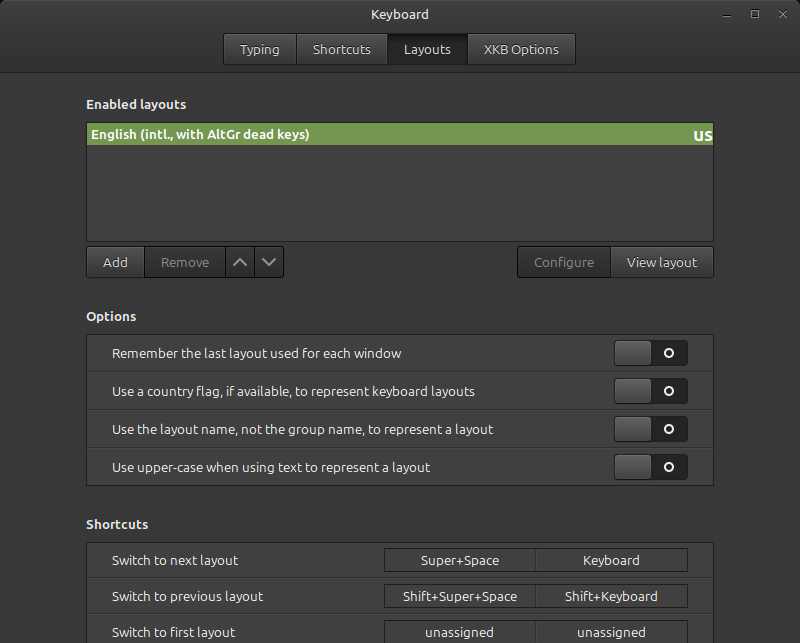
Anyhow...
I type all of that just to let you know why people are unlikely to use the é character. They simply don't know how to do it. The idea of a keyboard layout like mine is a complete mystery to them.
So, it's perhaps laziness, maybe some ignorance, and probably a whole lot of 'I don't care'.
Ah, you're using Mint. I'm brazilian, so I use Brazil keyboard, and the language, is portuguese(Brazilian) tooI use a US keyboard layout, but I have international keys with the AltGr/Shift key modifier. So, it's just the left alt button and the e key to type an é.
I'm in a very, very small minority of English speakers/keyboard users. Many people don't even know such keyboard layouts exist, nor do they know how to use them. From what people have said and typed, it's not something English speakers really care about. Me? I like being able to type things like ¢™®, etc. It's easy for me to mention that it is 33° F where I am right now.
But, no... No, most English speakers just use the plain English keyboard, sometimes using the keyboard for their region (like US vs UK layouts).
I decided to use Google...
I dare say that the first time I did this was on a Windows system. Huh... It looks like it was an innovation from Microsoft. I did not know that, or put it together in my head. I've used the keyboard layout for years. I just took it for granted when I moved to Linux full-time.
I've seen different names for the keyboard layout, so one might have to poke at it to decide which one they want. One of them works by first pressing one key and then pressing another key after it. The layout I use is one where you press the key (AltGr) and hold it while pressing the other keys.
I'm using my Mint computer at the moment...
Anyhow...
I type all of that just to let you know why people are unlikely to use the é character. They simply don't know how to do it. The idea of a keyboard layout like mine is a complete mystery to them.
So, it's perhaps laziness, maybe some ignorance, and probably a whole lot of 'I don't care'.
Ah, you're using Mint
I mostly use Lubuntu, but that is indeed a Mint Cinnamon system.
I don't think I personally know any American English speaker who uses an alternative keyboard layout, except for some who use weird layouts due to their profession, and a couple of geeks who use the Dvorak layout. The missus uses Linux, but she just uses the regular US English keyboard layout.
OMG, I am not American, hahahahahhaha.I am BrazilianI mostly use Lubuntu, but that is indeed a Mint Cinnamon system.
I don't think I personally know any American English speaker who uses an alternative keyboard layout, except for some who use weird layouts due to their profession, and a couple of geeks who use the Dvorak layout. The missus uses Linux, but she just uses the regular US English keyboard layout.
I am Brazilian
I had assumed so. I was referring to the people you'll encounter, especially on this forum.

Similar threads

- Replies
- 0
- Views
- 826


- Replies
- 0
- Views
- 2K
- Replies
- 2
- Views
- 2K
- Replies
- 0
- Views
- 5K



