

Many people would like to see real-time statistics about their system on their desktop. The information shown on the desktop by 'Conky' is configurable.
Let's look into installing 'Conky' and getting it properly configured to your liking.
Installation
To install 'Conky' is an easy task. Conky is available on most Linux distros. Simply use your specific installation command to install the package named 'conky'.
For example, with Ubuntu, the command is 'sudo apt install conky conky-all'. With Fedora, the command is 'sudo dnf install conky conky-all'.
The process should install 'Conky' and you are now ready to configure the information being displayed.
Auto-start Conky
The first thing we need to get 'Conky' started is to create a configuration file that starts when you log into the system. Each configuration file will be specific to each user.
nano ~/Conky.sh
Within the file, add the lines for the script:
#!/bin/bash
sleep 5 && conky
Save the file and exit the editor. The file needs to be made executable. Use the command:
chmod +x ~/Conky.sh
Use your Graphical User Interface to open your Operating Systems Startup Applications Preferences. This is on Ubuntu systems. Add an entry and point it to the bash file we just created. Every time you log into your account, the 'Conky' app should automatically start.
When it does, you’ll see a window similar to that in Figure 1.
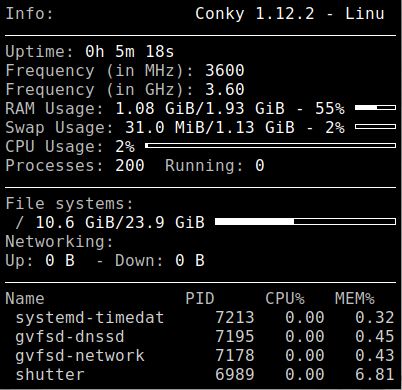
FIGURE 1
Configuration
The default configuration file is '/etc/conky/conky.conf'. Its contents are:
-- Conky, a system monitor https://github.com/brndnmtthws/conky
--
-- This configuration file is Lua code. You can write code in here, and it will
-- execute when Conky loads. You can use it to generate your own advanced
-- configurations.
--
-- Try this (remove the `--`):
--
-- print("Loading Conky config")
--
-- For more on Lua, see:
-- https://www.lua.org/pil/contents.html
conky.config = {
alignment = 'top_left',
background = false,
border_width = 1,
cpu_avg_samples = 2,
default_color = 'white',
default_outline_color = 'white',
default_shade_color = 'white',
double_buffer = true,
draw_borders = false,
draw_graph_borders = true,
draw_outline = false,
draw_shades = false,
extra_newline = false,
font = 'DejaVu Sans Mono:size=12',
gap_x = 60,
gap_y = 60,
minimum_height = 5,
minimum_width = 5,
net_avg_samples = 2,
no_buffers = true,
out_to_console = false,
out_to_ncurses = false,
out_to_stderr = false,
out_to_x = true,
own_window = true,
own_window_class = 'Conky',
own_window_type = 'desktop',
show_graph_range = false,
show_graph_scale = false,
stippled_borders = 0,
update_interval = 1.0,
uppercase = false,
use_spacer = 'none',
use_xft = true,
}
conky.text = [[
${color grey}Info:$color ${scroll 32 Conky $conky_version - $sysname $nodename $kernel $machine}
$hr
${color grey}Uptime:$color $uptime
${color grey}Frequency (in MHz):$color $freq
${color grey}Frequency (in GHz):$color $freq_g
${color grey}RAM Usage:$color $mem/$memmax - $memperc% ${membar 4}
${color grey}Swap Usage:$color $swap/$swapmax - $swapperc% ${swapbar 4}
${color grey}CPU Usage:$color $cpu% ${cpubar 4}
${color grey}Processes:$color $processes ${color grey}Running:$color $running_processes
$hr
${color grey}File systems:
/ $color${fs_used /}/${fs_size /} ${fs_bar 6 /}
${color grey}Networking:
Up:$color ${upspeed} ${color grey} - Down:$color ${downspeed}
$hr
${color grey}Name PID CPU% MEM%
${color lightgrey} ${top name 1} ${top pid 1} ${top cpu 1} ${top mem 1}
${color lightgrey} ${top name 2} ${top pid 2} ${top cpu 2} ${top mem 2}
${color lightgrey} ${top name 3} ${top pid 3} ${top cpu 3} ${top mem 3}
${color lightgrey} ${top name 4} ${top pid 4} ${top cpu 4} ${top mem 4}
]]
From the bottom section labeled 'conky.text', you can remove lines you do not want in the display. By editing the configuration file in the folder '/etc/conky', the changes are made for all users who log into the system and start 'Conky'.
If you want to create your own personal configuration file for your user account, then perform the following two commands:
cat /etc/conky/conky.conf > ~/.conkyrc
The command will copy the contents or the original configuration file into the file '.conktrc' in your HOME folder. The service uses the file '.conkyrc' in your HOME folder instead of the main configuration file.
So, after you log out and back in, the service uses the new configuration file and you can change it without affecting other users’ display, if they use conky.
Now, the cool thing, if you change the configuration file, it takes effect immediately. There is no need to logout and back in or stop and start conky.
If you want to move the conky window around, you can change the alignment. The default is 'top_left'. The options are 'top_middle', 'top_right', 'bottom_left', 'bottom_middle', 'bottom_right' or 'none'. If you specify 'none' you can use parameters on the command line, or in the bash script, to specify X and Y coordinates. For example, 'conky -x 500 -y 100' to place the window 500 pixels to the right and 100 pixels down.
There is a comprehensive list of the items above the TEXT line at 'http://ifxgroup.net/conky.htm#p1' and below the TEXT line at 'http://ifxgroup.net/conky.htm#p2'.
Themes
If you are using Ubuntu, or a Debian distro, then you can use the 'ConkyManager 2' program to manage themes.
In a Terminal, type the command 'sudo add-apt-repository ppa:ubuntuhandbook1/conkymanager2'. Enter your password when prompted and then press 'ENTER' when needed. The packages should be updated from the newly added and existing repositories.
To install the 'Conky-Manager 2' application, use the command 'sudo apt install conky-manager2'.
The manager comes with existing themes. Once you open the manager, you'll see them listed. Open the window a little larger than it defaults to when opened. There should be a Preview pane on the bottom. An icon at the top, the ninth one from the left, allows you to generate preview images. Make sure you select the option to generate images for all widgets with missing previews. I show the window in Figure 2.
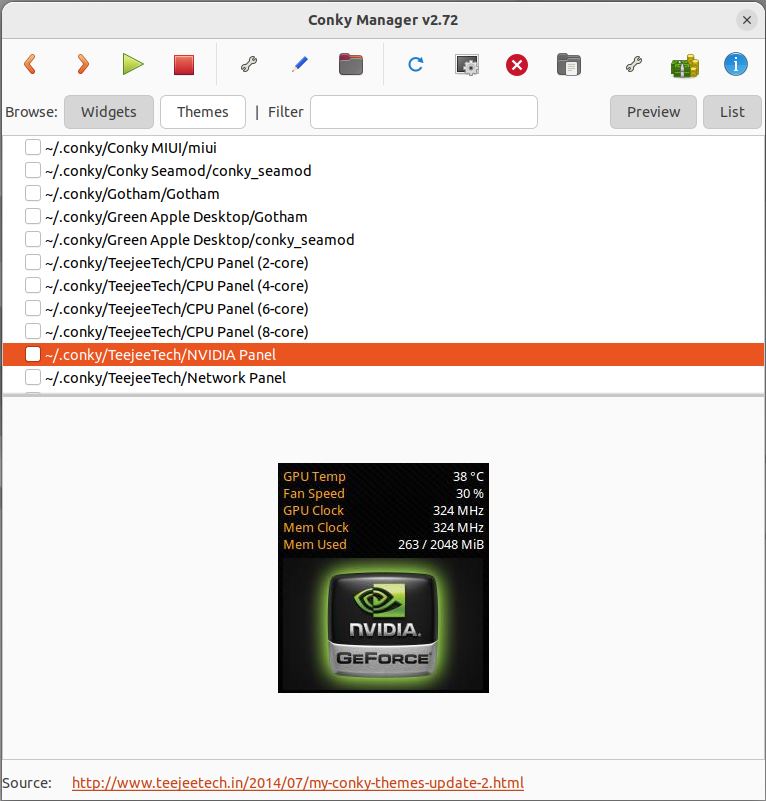
FIGURE 2
Each Theme has one or more widgets to make up the visualization. From the 'Widget' tab, you can just select specific Widgets and not the whole Theme. If you want the whole Theme, then select the Theme tab and check the Theme you want to use. Be aware that if the Theme uses a background image in the Theme, it will require you to reset it if you disable the Theme.
The manager is an easy way to add Themes, if the manager and Conky supports them.
Conclusion
You can streamline 'Conky' to just show the specific items you need on the desktop to see.
You can adjust the time that 'Conky' updates the screen. Experiment with it and enjoy it.
Let's look into installing 'Conky' and getting it properly configured to your liking.
Installation
To install 'Conky' is an easy task. Conky is available on most Linux distros. Simply use your specific installation command to install the package named 'conky'.
For example, with Ubuntu, the command is 'sudo apt install conky conky-all'. With Fedora, the command is 'sudo dnf install conky conky-all'.
The process should install 'Conky' and you are now ready to configure the information being displayed.
Auto-start Conky
The first thing we need to get 'Conky' started is to create a configuration file that starts when you log into the system. Each configuration file will be specific to each user.
nano ~/Conky.sh
Within the file, add the lines for the script:
#!/bin/bash
sleep 5 && conky
Save the file and exit the editor. The file needs to be made executable. Use the command:
chmod +x ~/Conky.sh
Use your Graphical User Interface to open your Operating Systems Startup Applications Preferences. This is on Ubuntu systems. Add an entry and point it to the bash file we just created. Every time you log into your account, the 'Conky' app should automatically start.
When it does, you’ll see a window similar to that in Figure 1.
FIGURE 1
Configuration
The default configuration file is '/etc/conky/conky.conf'. Its contents are:
-- Conky, a system monitor https://github.com/brndnmtthws/conky
--
-- This configuration file is Lua code. You can write code in here, and it will
-- execute when Conky loads. You can use it to generate your own advanced
-- configurations.
--
-- Try this (remove the `--`):
--
-- print("Loading Conky config")
--
-- For more on Lua, see:
-- https://www.lua.org/pil/contents.html
conky.config = {
alignment = 'top_left',
background = false,
border_width = 1,
cpu_avg_samples = 2,
default_color = 'white',
default_outline_color = 'white',
default_shade_color = 'white',
double_buffer = true,
draw_borders = false,
draw_graph_borders = true,
draw_outline = false,
draw_shades = false,
extra_newline = false,
font = 'DejaVu Sans Mono:size=12',
gap_x = 60,
gap_y = 60,
minimum_height = 5,
minimum_width = 5,
net_avg_samples = 2,
no_buffers = true,
out_to_console = false,
out_to_ncurses = false,
out_to_stderr = false,
out_to_x = true,
own_window = true,
own_window_class = 'Conky',
own_window_type = 'desktop',
show_graph_range = false,
show_graph_scale = false,
stippled_borders = 0,
update_interval = 1.0,
uppercase = false,
use_spacer = 'none',
use_xft = true,
}
conky.text = [[
${color grey}Info:$color ${scroll 32 Conky $conky_version - $sysname $nodename $kernel $machine}
$hr
${color grey}Uptime:$color $uptime
${color grey}Frequency (in MHz):$color $freq
${color grey}Frequency (in GHz):$color $freq_g
${color grey}RAM Usage:$color $mem/$memmax - $memperc% ${membar 4}
${color grey}Swap Usage:$color $swap/$swapmax - $swapperc% ${swapbar 4}
${color grey}CPU Usage:$color $cpu% ${cpubar 4}
${color grey}Processes:$color $processes ${color grey}Running:$color $running_processes
$hr
${color grey}File systems:
/ $color${fs_used /}/${fs_size /} ${fs_bar 6 /}
${color grey}Networking:
Up:$color ${upspeed} ${color grey} - Down:$color ${downspeed}
$hr
${color grey}Name PID CPU% MEM%
${color lightgrey} ${top name 1} ${top pid 1} ${top cpu 1} ${top mem 1}
${color lightgrey} ${top name 2} ${top pid 2} ${top cpu 2} ${top mem 2}
${color lightgrey} ${top name 3} ${top pid 3} ${top cpu 3} ${top mem 3}
${color lightgrey} ${top name 4} ${top pid 4} ${top cpu 4} ${top mem 4}
]]
From the bottom section labeled 'conky.text', you can remove lines you do not want in the display. By editing the configuration file in the folder '/etc/conky', the changes are made for all users who log into the system and start 'Conky'.
If you want to create your own personal configuration file for your user account, then perform the following two commands:
cat /etc/conky/conky.conf > ~/.conkyrc
The command will copy the contents or the original configuration file into the file '.conktrc' in your HOME folder. The service uses the file '.conkyrc' in your HOME folder instead of the main configuration file.
So, after you log out and back in, the service uses the new configuration file and you can change it without affecting other users’ display, if they use conky.
Now, the cool thing, if you change the configuration file, it takes effect immediately. There is no need to logout and back in or stop and start conky.
If you want to move the conky window around, you can change the alignment. The default is 'top_left'. The options are 'top_middle', 'top_right', 'bottom_left', 'bottom_middle', 'bottom_right' or 'none'. If you specify 'none' you can use parameters on the command line, or in the bash script, to specify X and Y coordinates. For example, 'conky -x 500 -y 100' to place the window 500 pixels to the right and 100 pixels down.
There is a comprehensive list of the items above the TEXT line at 'http://ifxgroup.net/conky.htm#p1' and below the TEXT line at 'http://ifxgroup.net/conky.htm#p2'.
Themes
If you are using Ubuntu, or a Debian distro, then you can use the 'ConkyManager 2' program to manage themes.
In a Terminal, type the command 'sudo add-apt-repository ppa:ubuntuhandbook1/conkymanager2'. Enter your password when prompted and then press 'ENTER' when needed. The packages should be updated from the newly added and existing repositories.
To install the 'Conky-Manager 2' application, use the command 'sudo apt install conky-manager2'.
The manager comes with existing themes. Once you open the manager, you'll see them listed. Open the window a little larger than it defaults to when opened. There should be a Preview pane on the bottom. An icon at the top, the ninth one from the left, allows you to generate preview images. Make sure you select the option to generate images for all widgets with missing previews. I show the window in Figure 2.
FIGURE 2
Each Theme has one or more widgets to make up the visualization. From the 'Widget' tab, you can just select specific Widgets and not the whole Theme. If you want the whole Theme, then select the Theme tab and check the Theme you want to use. Be aware that if the Theme uses a background image in the Theme, it will require you to reset it if you disable the Theme.
The manager is an easy way to add Themes, if the manager and Conky supports them.
Conclusion
You can streamline 'Conky' to just show the specific items you need on the desktop to see.
You can adjust the time that 'Conky' updates the screen. Experiment with it and enjoy it.

![WireFrame26 [Leaven13]](/data/avatars/m/227/227998.jpg?1781039524)


.png)
.png)





