

I have mentioned in a couple of other posts that I'm usually not a fan of the onboard audio on most motherboards these days.
But for the purpose of this article, that doesn't matter too much. No matter what audio setup you have, hopefully this article will
help.
First, if you do have multiple audio sources in your computer, you need to pick the correct one.
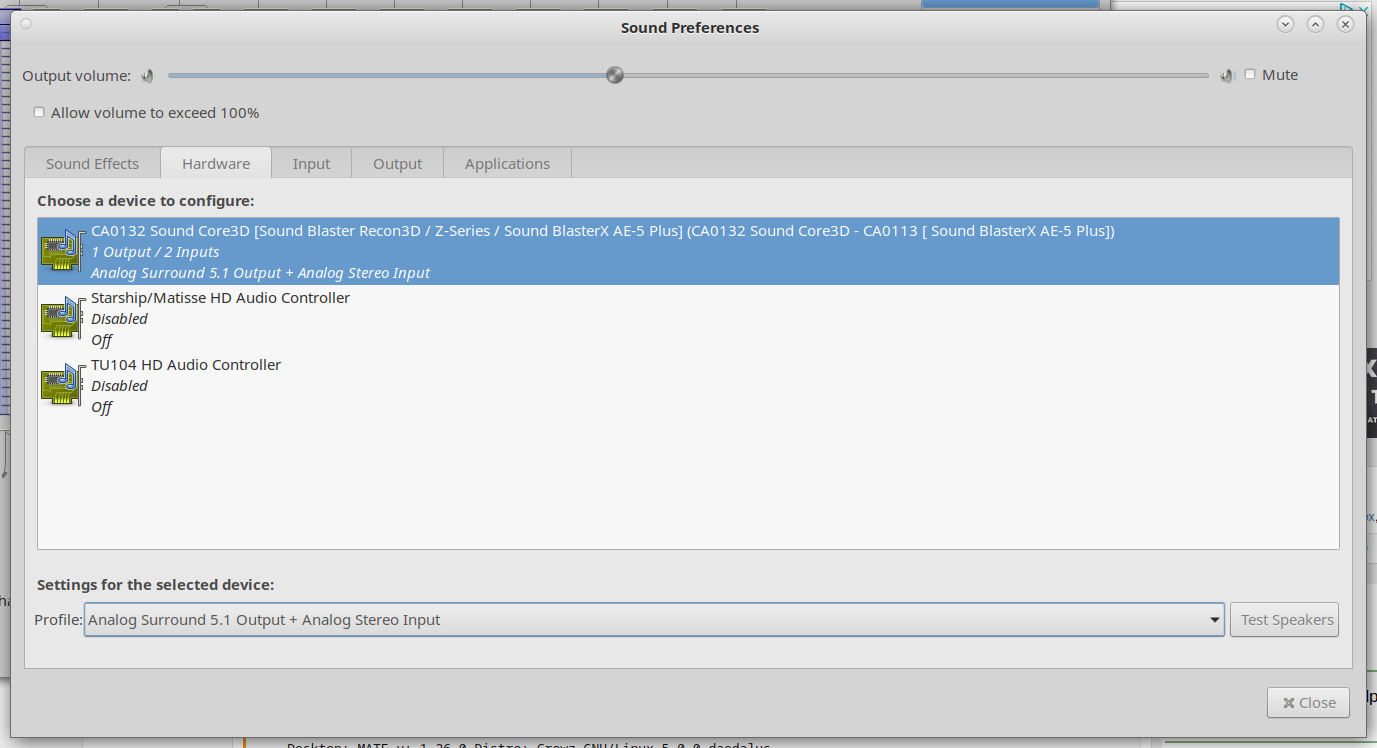
For most people it will usually be two choices. The on-board audio chip on your motherboard, or if you have a discrete Video card like an
nVidia geForce or AMD Radeon, you can also use that as audio output. The quality from the HDMI output will be much better than your on-board sound chip. However the problem is, how do you connect HDMI output to a speaker. If your monitor has built-in speakers then it's no problem. For everyone else, you'll have to buy something like a television sound bar to connect your HDMI audio output to. Make sure it supports something called HDMI ARC. Most, but not all, do.
For nerds like me, I use neither, I have a sound card.
Once you've picked the correct sound source. It's a good idea to test your speakers.
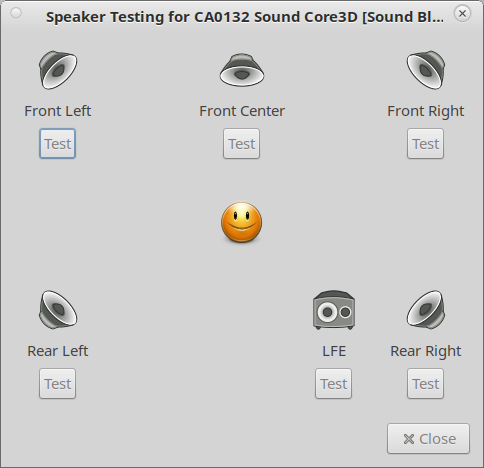
In this case, because I chose 5.1 audio output, it's showing 5 speakers. For most people you'll only see left and right.
You can click on the "test" button for each speaker to make sure they are working. This is a good place to start, because if it
isn't working here, it won't work in any of your applications such as music players.
Once this is done, you can check the standard system applications for sound. For example the alsamixer GUI.
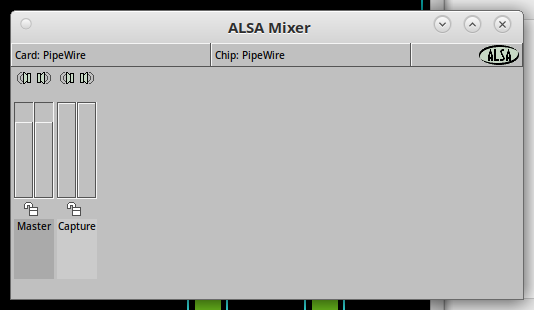
The standard alsamixer is fine if you only have left and right stereo channels. But if you have 2.1, or 5.1 or 7.1 audio output, you'll
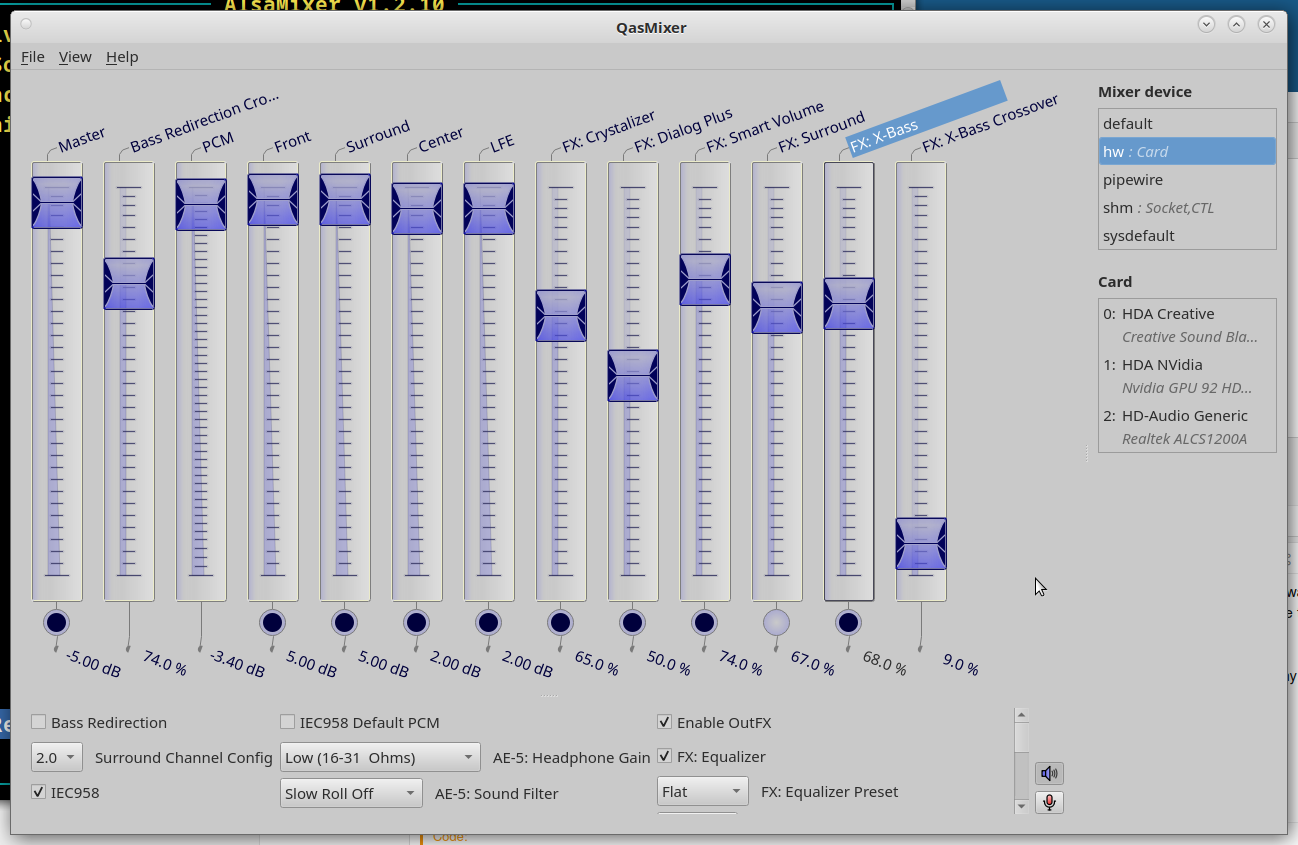
likely want more control, I recommend the QasMixer. However it requires a little setup. By default it uses the on-board audio chip,
so you will have to select the correct audio source again.
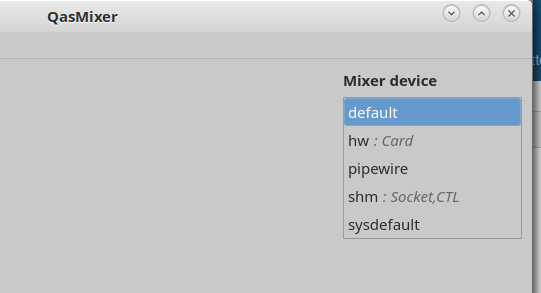
But once you do that, now the screen will change, and you'll have a lot more options.
I'm pretty sure this is based on the CLI version of the alsamixer. If you open up a console and just type "alsamixer" ( without the quotes )
You should see something like this.
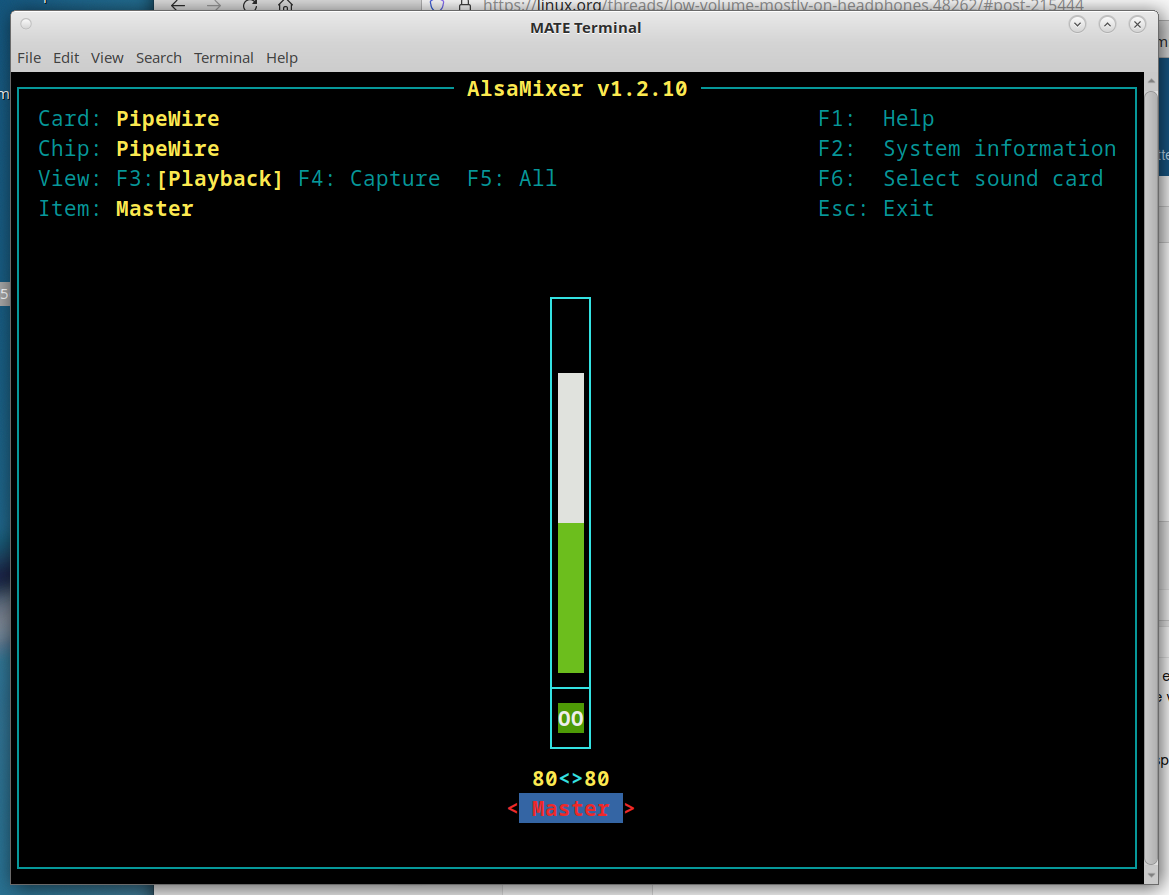
Well, that's not very exciting, all it is is a volume control, well again, that's the default, we have to select the audio source again. Press F6.
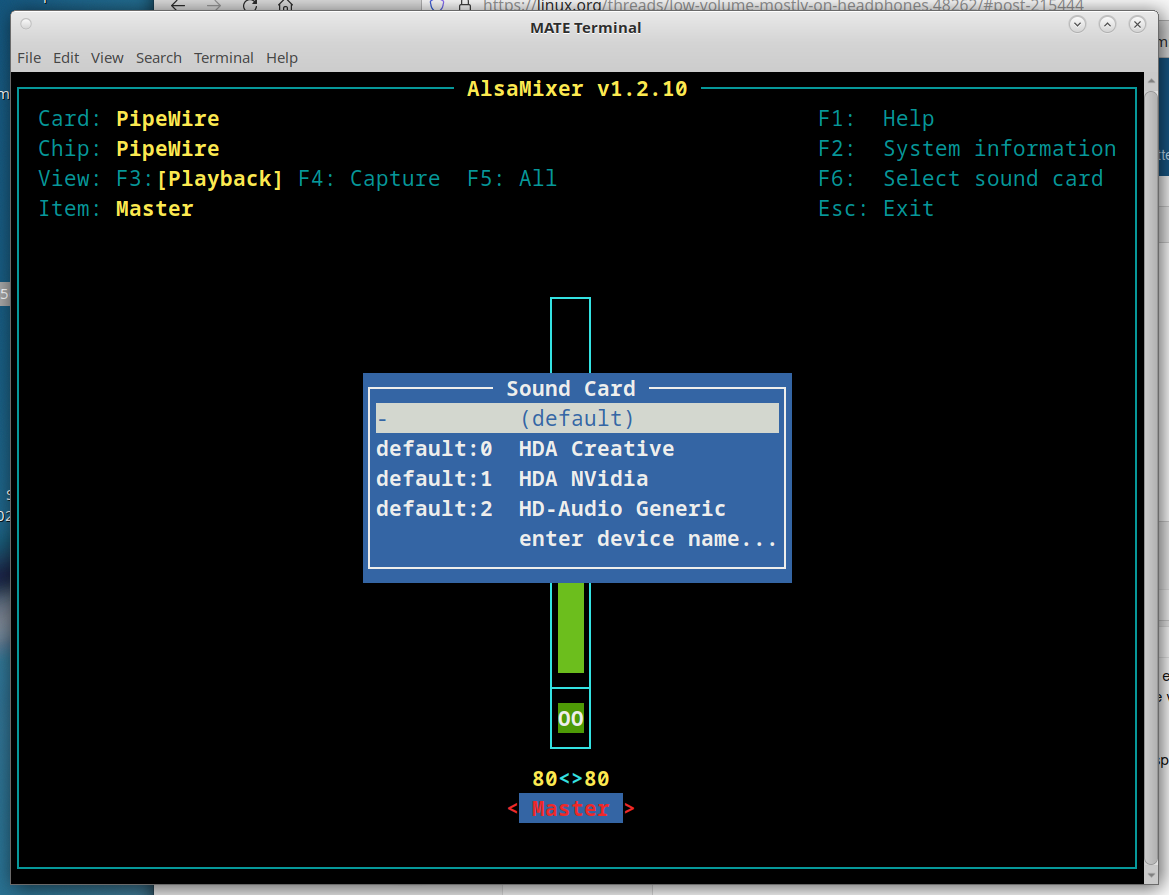
Now I can choose which audio source I want to use. Use the up and down arrows to pick the one you want, and press enter.
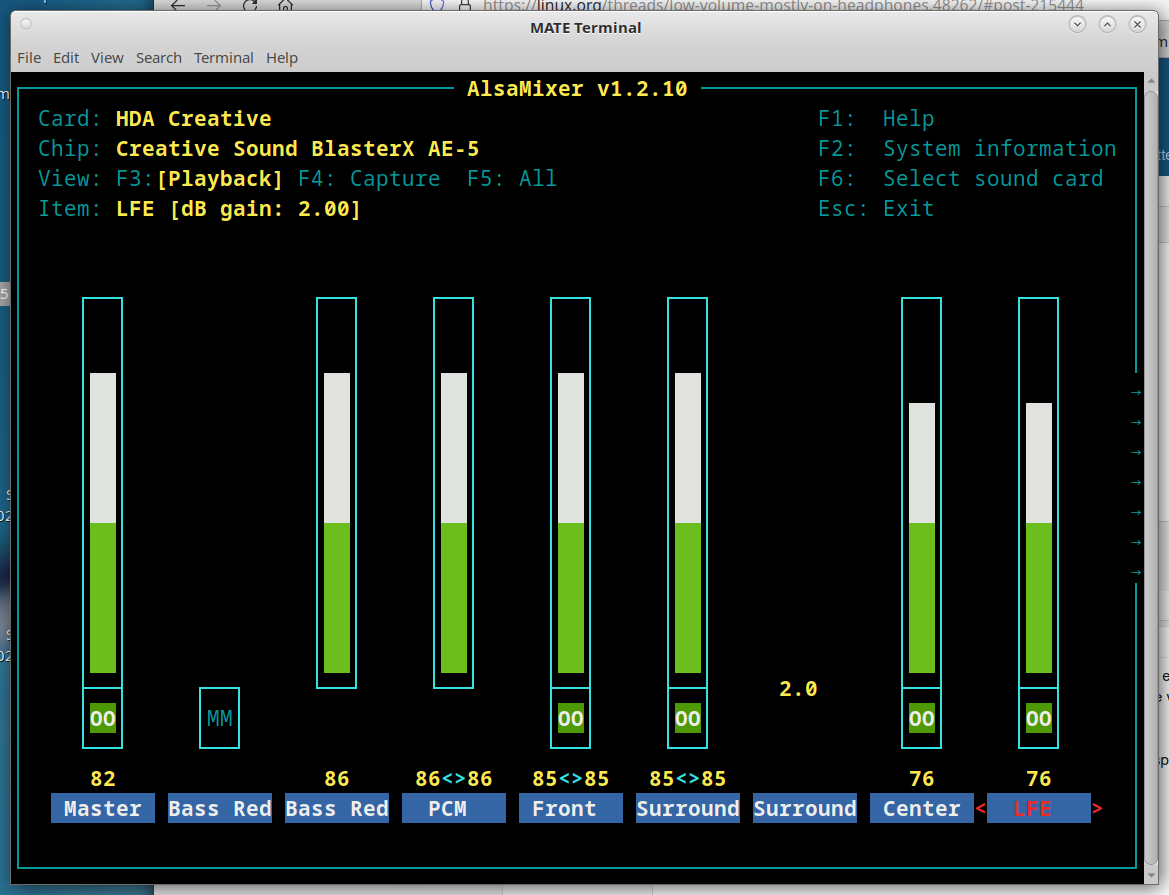
Ah ha, now I have a lot more options and control. The nice thing about doing it this way, is that it works even if you don't have a Xwindows GUI Desktop installed. Just use your left and right arrow keys to select the channels, and then use your up and down arrow keys to increase or decrease the volume. Again, for many people, if you just have the standard on board chip, you'll just see the left and right channels.
NOTE: If you get nothing else out of this article, please get this part. Many people who have extra speakers, or use headphones need to know this. Symptom. My main left and right speakers work, but my surround speakers do not, or my headphones do not, or I'm not getting any bass out of my subwoofer. This is pretty common. What can you do to fix it. In the example above, you can see I have my "Bass Red", "Front" and "Surround" channels turned up to about 85 or 86. I personally prefer my "Center" channel to be a little lower. The very first time I ran this,
my bass was set to zero. Also my LFE was set to zero. My headphones didn't work, and my Bass subwoofer was barely audible.
I turned up those two settings, and everything works great.
I'm not exactly sure how the alsamixer and volume control in your GUI work together, but I do know this. I can have my volume control on
desktop GUI turned all the way up to 100% and the volume still isn't very loud. So I go into the alsamixer, and turn up the volume there.
Now when I go back to the GUI volume control everything is quite a bit louder.
But for the purpose of this article, that doesn't matter too much. No matter what audio setup you have, hopefully this article will
help.
First, if you do have multiple audio sources in your computer, you need to pick the correct one.
For most people it will usually be two choices. The on-board audio chip on your motherboard, or if you have a discrete Video card like an
nVidia geForce or AMD Radeon, you can also use that as audio output. The quality from the HDMI output will be much better than your on-board sound chip. However the problem is, how do you connect HDMI output to a speaker. If your monitor has built-in speakers then it's no problem. For everyone else, you'll have to buy something like a television sound bar to connect your HDMI audio output to. Make sure it supports something called HDMI ARC. Most, but not all, do.
For nerds like me, I use neither, I have a sound card.
Once you've picked the correct sound source. It's a good idea to test your speakers.
In this case, because I chose 5.1 audio output, it's showing 5 speakers. For most people you'll only see left and right.
You can click on the "test" button for each speaker to make sure they are working. This is a good place to start, because if it
isn't working here, it won't work in any of your applications such as music players.
Once this is done, you can check the standard system applications for sound. For example the alsamixer GUI.
The standard alsamixer is fine if you only have left and right stereo channels. But if you have 2.1, or 5.1 or 7.1 audio output, you'll
likely want more control, I recommend the QasMixer. However it requires a little setup. By default it uses the on-board audio chip,
so you will have to select the correct audio source again.
But once you do that, now the screen will change, and you'll have a lot more options.
I'm pretty sure this is based on the CLI version of the alsamixer. If you open up a console and just type "alsamixer" ( without the quotes )
You should see something like this.
Well, that's not very exciting, all it is is a volume control, well again, that's the default, we have to select the audio source again. Press F6.
Now I can choose which audio source I want to use. Use the up and down arrows to pick the one you want, and press enter.
Ah ha, now I have a lot more options and control. The nice thing about doing it this way, is that it works even if you don't have a Xwindows GUI Desktop installed. Just use your left and right arrow keys to select the channels, and then use your up and down arrow keys to increase or decrease the volume. Again, for many people, if you just have the standard on board chip, you'll just see the left and right channels.
NOTE: If you get nothing else out of this article, please get this part. Many people who have extra speakers, or use headphones need to know this. Symptom. My main left and right speakers work, but my surround speakers do not, or my headphones do not, or I'm not getting any bass out of my subwoofer. This is pretty common. What can you do to fix it. In the example above, you can see I have my "Bass Red", "Front" and "Surround" channels turned up to about 85 or 86. I personally prefer my "Center" channel to be a little lower. The very first time I ran this,
my bass was set to zero. Also my LFE was set to zero. My headphones didn't work, and my Bass subwoofer was barely audible.
I turned up those two settings, and everything works great.
I'm not exactly sure how the alsamixer and volume control in your GUI work together, but I do know this. I can have my volume control on
desktop GUI turned all the way up to 100% and the volume still isn't very loud. So I go into the alsamixer, and turn up the volume there.
Now when I go back to the GUI volume control everything is quite a bit louder.





