Solved Looking for a simple file renamer like Oscar's

Solved issue

Goatmilk

Active Member
Joined
Jul 27, 2024
Messages
221
Reaction score
122
Credits
2,428
Does anyone know a good and simple file renamer that runs in Linux?

In Windows, I had an age old little thing called "Oscar's Renamer". It's mo was to list a whole directory as a simple txt list and you could quickly and easily change a bunch of file names, either by typing into the list, by cut & paste or find & replace. Extremely useful.


In Linux now I have "KRename". Whatever it's supposed to be good for I cannot fathom. You have to rename each single file the long way, just as you would have to in any file manager - so it doesn't make much sense to even have it because you could have stayed in your file manager and saved the trouble to call it up. Maybe it's useful for some obscure programming stuff I have no clue about, but not for me.

Does anyone know of a file renamer that would work like Oscar's?


No I didn't... looking now


edit: Oh, that. Yes, but it isn't quite like Oscar's was
 
Let's says I have a bunch of files in a directory, some file names are fine, others need a bit of twisting, maybe from vy09-07-07cat to x8-09-07-06horse, something which merely requires a few typing changes in each name.

Oscar had a whole directory in one list resembling a txt file, you went down the names and changed the bits that needed change. It was like changing a list in a text file: quick, easy, uncomplicated. Once you were done, you had to okay the changes and the program wrote them onto the drive.

They explain it a lot better on the website: https://www.mediachance.com/free/renamer.htm
 
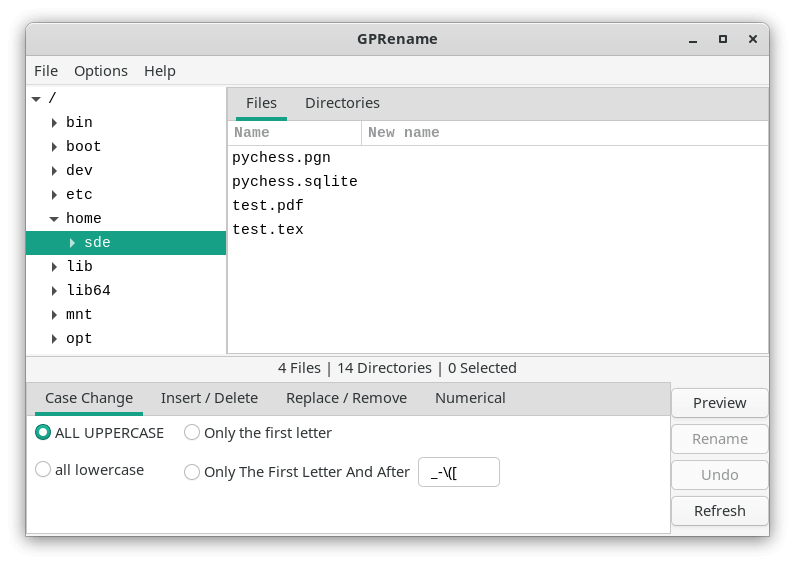
Screenshot for GPRename. Does it look like what you want?

GPRename.png
 
It does... but it doesn't work like I'd like it. Just tried it, you cannot write and change the listed filenames right in the list.
 
I created this python script on the fly with artificial intelligence:
Code:
import os
import tkinter as tk
from tkinter import filedialog, scrolledtext, messagebox

def select_folder():
    root = tk.Tk()
    root.withdraw()  # Nasconde la finestra principale
    folder_selected = filedialog.askdirectory()

    if folder_selected:
        list_files(folder_selected)

def list_files(folder):
    window = tk.Tk()
    window.title("File nella cartella")

    text_area1 = scrolledtext.ScrolledText(window, width=30, height=20)
    text_area1.grid(row=0, column=0, padx=10, pady=10)

    text_area2 = scrolledtext.ScrolledText(window, width=30, height=20)
    text_area2.grid(row=0, column=1, padx=10, pady=10)

    
    files = os.listdir(folder)
    for filename in files:
        text_area1.insert(tk.END, filename + '\n')
        text_area2.insert(tk.END, filename + '\n')

    text_area1.config(state=tk.DISABLED)
    text_area2.config(state=tk.NORMAL)

    rename_button = tk.Button(window, text="Rinomina File", command=lambda: rename_files(folder, text_area1, text_area2))
    rename_button.grid(row=1, columnspan=2, padx=10, pady=10)

    window.mainloop()

def rename_files(folder, text_area1, text_area2):
    # Estrai i nomi dai text area
    names1 = text_area1.get("1.0", tk.END).strip().split('\n')
    names2 = text_area2.get("1.0", tk.END).strip().split('\n')


    if len(names1) != len(names2):
        messagebox.showerror("Error", "The number of files and names must be the same.")
        return

    for old_name, new_name in zip(names1, names2):
        old_path = os.path.join(folder, old_name.strip())  
        new_path = os.path.join(folder, new_name.strip()) 
        if os.path.exists(old_path) and new_name.strip(): 
            os.rename(old_path, new_path) 

    messagebox.showinfo("Success", "Files renamed successfully!")

select_folder()
Save as oscar.py, grant permission and execute from terminal : "python3 /path/to/oscar.py"
 
I created this python script on the fly with artificial intelligence:
Code:
import os
import tkinter as tk
from tkinter import filedialog, scrolledtext, messagebox

def select_folder():
    root = tk.Tk()
    root.withdraw()  # Nasconde la finestra principale
    folder_selected = filedialog.askdirectory()

    if folder_selected:
        list_files(folder_selected)

def list_files(folder):
    window = tk.Tk()
    window.title("File nella cartella")

    text_area1 = scrolledtext.ScrolledText(window, width=30, height=20)
    text_area1.grid(row=0, column=0, padx=10, pady=10)

    text_area2 = scrolledtext.ScrolledText(window, width=30, height=20)
    text_area2.grid(row=0, column=1, padx=10, pady=10)

   
    files = os.listdir(folder)
    for filename in files:
        text_area1.insert(tk.END, filename + '\n')
        text_area2.insert(tk.END, filename + '\n')

    text_area1.config(state=tk.DISABLED)
    text_area2.config(state=tk.NORMAL)

    rename_button = tk.Button(window, text="Rinomina File", command=lambda: rename_files(folder, text_area1, text_area2))
    rename_button.grid(row=1, columnspan=2, padx=10, pady=10)

    window.mainloop()

def rename_files(folder, text_area1, text_area2):
    # Estrai i nomi dai text area
    names1 = text_area1.get("1.0", tk.END).strip().split('\n')
    names2 = text_area2.get("1.0", tk.END).strip().split('\n')


    if len(names1) != len(names2):
        messagebox.showerror("Error", "The number of files and names must be the same.")
        return

    for old_name, new_name in zip(names1, names2):
        old_path = os.path.join(folder, old_name.strip()) 
        new_path = os.path.join(folder, new_name.strip())
        if os.path.exists(old_path) and new_name.strip():
            os.rename(old_path, new_path)

    messagebox.showinfo("Success", "Files renamed successfully!")

select_folder()
Save as oscar.py, grant permission and execute from terminal : "python3 /path/to/oscar.py"

Thank you, I'd like to try this.... but a newbie question first: will this change anything in the system?
 
Code:
$ python3 /home/owl/Documents/oscar.py
Traceback (most recent call last):
  File "/home/owl/Documents/oscar.py", line 3, in <module>
    import tkinter as tk
ModuleNotFoundError: No module named 'tkinter'

Getting way over my head here...
 
Let's says I have a bunch of files in a directory, some file names are fine, others need a bit of twisting, maybe from vy09-07-07cat to x8-09-07-06horse, something which merely requires a few typing changes in each name.

Oscar had a whole directory in one list resembling a txt file, you went down the names and changed the bits that needed change. It was like changing a list in a text file: quick, easy, uncomplicated. Once you were done, you had to okay the changes and the program wrote them onto the drive.

They explain it a lot better on the website: https://www.mediachance.com/free/renamer.htm
This is a quote from the Oscar's Renamer app on the page linked to in post #5:

Wouldn't be great if we can edit file names in a folder just as easy as a list of names in a text editor?
Search and Replace, Copy and Paste, just move with your cursor anywhere, create simple keyboard macros...

This is exactly what the Oscar's Renamer does. You edit a file names in a folder as if it was a text on a page in a familiar full featured text editor.

Renaming files in linux often doesn't need anything so involved as creating a file with filenames, then editing the filenames inside a text editor and then having the app apply the filenames to the filesystem.

In the example shown in the link to the Oscar's Renamer page, the file name changes can be done in a brief command line command. Here's a directory with the files from the example on that linked page, plus the file example mentioned in post #5:
Code:
$ ls
DSC01317.JPG  DSC01378.JPG  DSC01455.JPG  DSC01524.JPG vy09-07-07cat

The change is to add an underscore between the letters and the numbers in the filenames of the jpeg files. The file-rename command can be applied to do that as follows:
Code:
$ file-rename 's/0/_0/' *.JPG

The output shows the change has been made to the relevant files:
Code:
$ ls
DSC_01317.JPG  DSC_01378.JPG  DSC_01455.JPG  DSC_01524.JPG vy09-07-07cat
The file vy09-07-07cat, not involved in the change, is untouched.

To change the other file name, changing "cat" to "horse", a similar command can be used:
Code:
$ file-rename 's/cat/horse/' vy*
Listing the files shows the relevant change has been made:
Code:
$ ls
DSC_01317.JPG  DSC_01378.JPG  DSC_01455.JPG  DSC_01524.JPG  vy09-07-07horse
There are other ways to achieve the same outcome. More complex name changes can be made with a number of different linux commands.

There is a package in linux that can work in the way in which Oscar's Renamer works by using a file with file names for the renaming. The package is named: renameutils which has the following description:
Description: Programs to make file renaming easier
The file renaming utilities (renameutils for short) are a set of
programs designed to make renaming of files faster and less
cumbersome.
.
This package consists of five programs - qmv, imv, icp, qcp and deurlname:
.
qmv ("quick move") allows file names to be edited in a text
editor. The names of all files in a directory are written to a text
file, which is then edited by the user. The text file is read and
parsed, and the changes are applied to the files.
.
imv ("interactive move"), is trivial but useful when you are too lazy
to type (or even complete) the name of the file to rename twice. It
allows a file name to be edited in the terminal using the GNU Readline
library.
.
icp and qcp are similar to imv and qmv but for copying using "cp".
.
deurlname removes URL encoded characters (such as %20 representing
space) from file names. Some programs such as w3m tend to keep those
characters encoded in saved files.

The renameutils programs use the command line and a text editor, so there's no GUI. There's a learning curve with that but it's by no means insurmountable.
 
Last edited:
You can download Bulky from Mint repo here:
Bulky is a free and open-source graphical user interface (GUI) tool designed for bulk renaming files and directories on Linux systems. Developed by Linux Mint, it is compatible with various Linux distributions and desktop environments, including Cinnamon, MATE, and GNOME.
 
I created this python script on the fly with artificial intelligence:

...
Save as oscar.py, grant permission and execute from terminal : "python3 /path/to/oscar.py"

After getting python3-tk it worked like a charm, and just like Oscar did!

I went and widened the two boxes a little and it actually worked (I half expected the laptop to explode given my talents...)

One question: Is there a way to make the boxes list the files alphabetically? And if, were would I put it?

Anyway, mille grazie!
 
According to the webs, I gotta put some a.sort() somewhere, but where?
 
Must have done something wrong...

Code:
$ python3 /home/owl/Documents/oscar.py
Traceback (most recent call last):
  File "/home/owl/Documents/oscar.py", line 96, in <module>
    select_folder()
  File "/home/owl/Documents/oscar.py", line 19, in select_folder
    list_files(folder_selected)
  File "/home/owl/Documents/oscar.py", line 43, in list_files
    a.sort()
    ^
NameError: name 'a' is not defined

Seems it doesn't like the 'a' in a.sort()
 
That was it! Thanks!


Follow Linux.org

Members online


Top